In the FabricAI portal account settings, you can enable two-factor authentication either with a phone number or an authentication app. Two-factor authentication enhances account security by ensuring that only the user has access to the account if the password is stolen. FabricAI will make two-factor authentication mandatory on October 1, 2025, as part of compliance with the EU's NIS2 directive.
How to enable two-factor authentication in the FabricAI portal
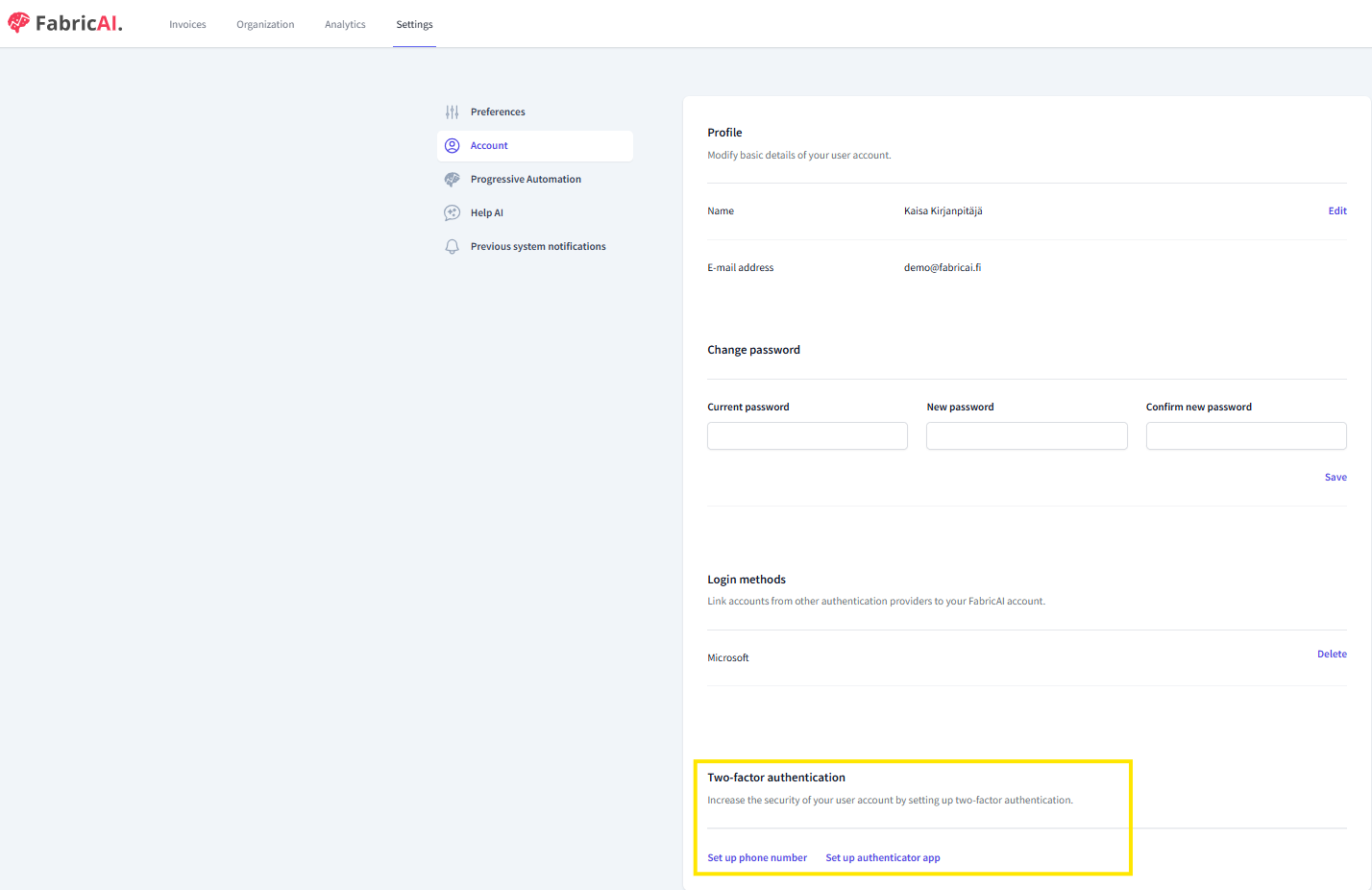
- Open account management from the top right corner of the FabricAI portal or by navigating to Settings > Account.
- At the bottom of the page, you can select whether you want to add two-factor authentication with a phone number or an authentication app.
- A window will open asking you to confirm your password.
- a) If you chose to authenticate with a phone number, add your phone number in the next step. A verification code will be sent to you via text message. Once you have entered the code in the opened window, authentication will be enabled.
b) If you chose to authenticate with an authentication app, a QR code will appear in the next step, which you need to scan with your authentication app. FabricAI supports all authentication apps. - Once you have scanned the QR code in your app, select "Confirm" in the FabricAI portal window and then enter the authentication code you receive from your app. Authentication is now enabled.
What to do if your phone number or phone changes?
We strongly recommend enabling two authentication methods so that one always works even if the device or phone number changes. If you can log in with one authentication method, you can remove the authentication method that has stopped working from the account settings and then add it again to a new device or phone number.
Microsoft login
Note! If you are using Microsoft login, you should not enable two-factor authentication in the FabricAI portal.
Did you find it helpful? Yes No
Send feedback