The purpose of client notes is to keep relevant information easily visible for each client whenever invoices for that client are being processed. This feature is available in the FabricAI portal in the invoice view, and it is visible even if the selected client currently has no open invoices.
Opening and creating notes
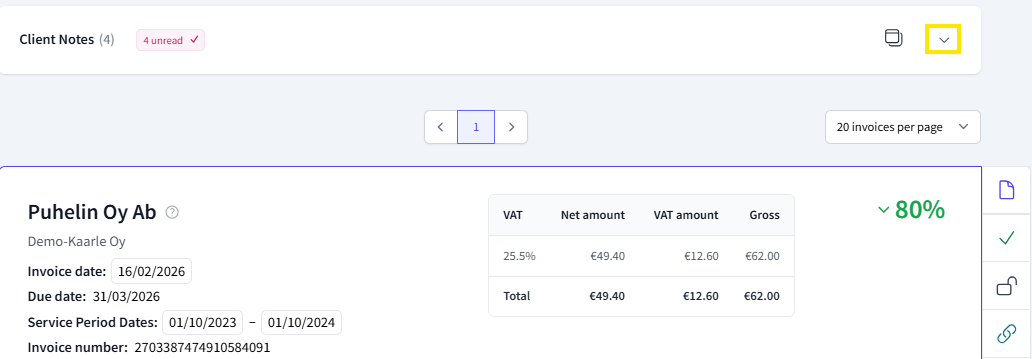
The functionality can be found above the invoice listing under Client notes.
Opening and closing: Click the arrow to the right of the title.
Writing a new entry: Type the text in the text field at the bottom of the box that opens.
Saving a note: Click the "Save" button in the right corner of the text field.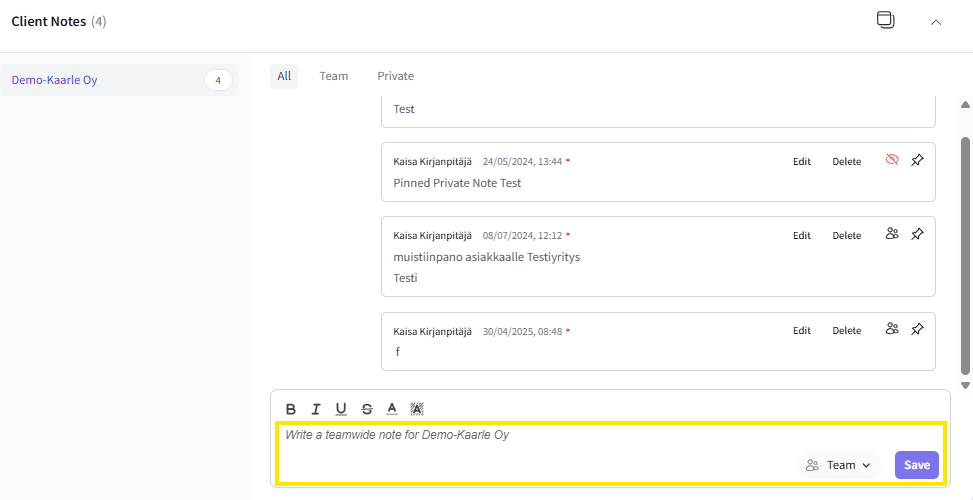
Private vs. team notes
You can choose who can see each note. The selection is made from the menu on the right side of the text field:
Team: The entry is visible to all users who have rights to the client in question. This is excellent for instructions, such as: "Remember the partial vat deduction right of 65% on K-Rauta invoices."
Private: The entry is visible only to you.
You can filter the view from the top of the box and choose to display either all entries, only team entries, or only your private notes.
Unread and pinned notes
The system helps to notice new and important instructions with automatic notifications:
New messages (Yellow notification): When your teammate makes a new shared entry, you will see a yellow "1 unread" notification in the Client notes section. You can mark it as read by opening the box. The notification is visible even if the note box is minimized.
Pinned notes (Pin function): If you want a particular note to always be prominently displayed, click the pin icon next to the note.
A pinned note is displayed with the "Pinned" notice next to the title.
Note: Pinnings are always personal. If you want your colleague to pay attention to the same thing, you can add a prompt to the note: "Mark this as important with a pin!"
Did you find it helpful? Yes No
Send feedback