Connect FabricAI and clients' Poweroffice environments
- Log in to the FabricAI portal and navigate to “Organization” from the top left
- Click “New integration”
- Select Poweroffice and click “Authenticate in PowerOffice”
- The Poweroffice login window will open, log in with your credentials to Poweroffice
- Select clients you want to add FabricAI to
- Click “give access”
- Done! The client has now been successfully added to FabricAI. The required AI models are trained in the background, and once this is complete, the client will start directly in production without separate confirmation. This usually takes a maximum of one day.
Add FabricAI in Poweroffice to the client's approval flow as the first approver, so FabricAI can fetch invoices at the right point
- Open “Settings” from the top
- Open “Voucher Approval Settings”
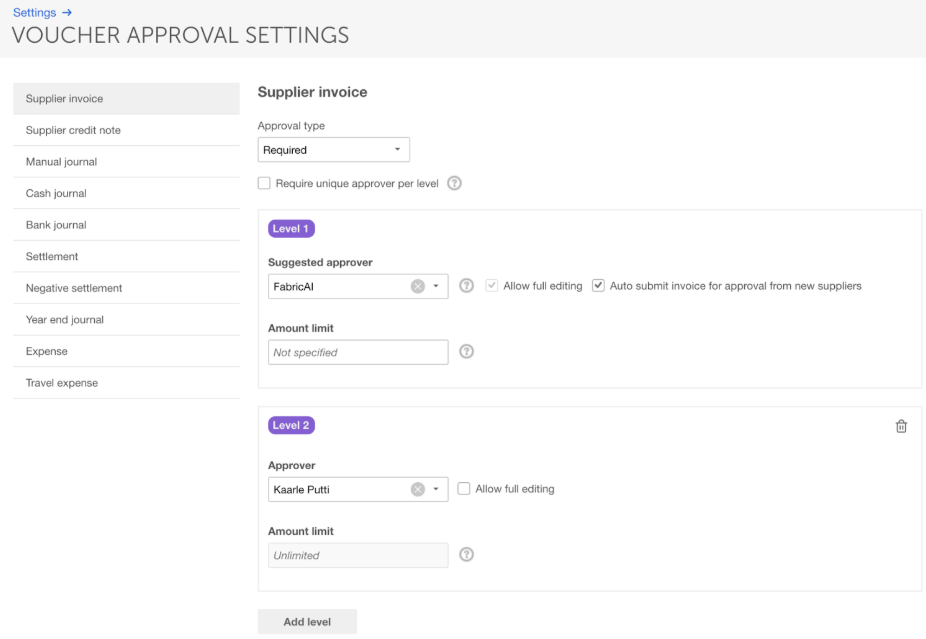
- Set the approval flow as follows
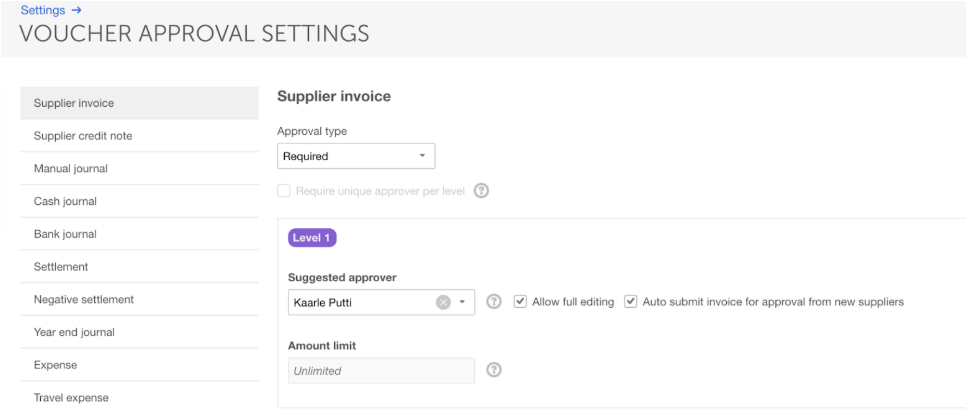
- Your initial situation is likely to be something like this
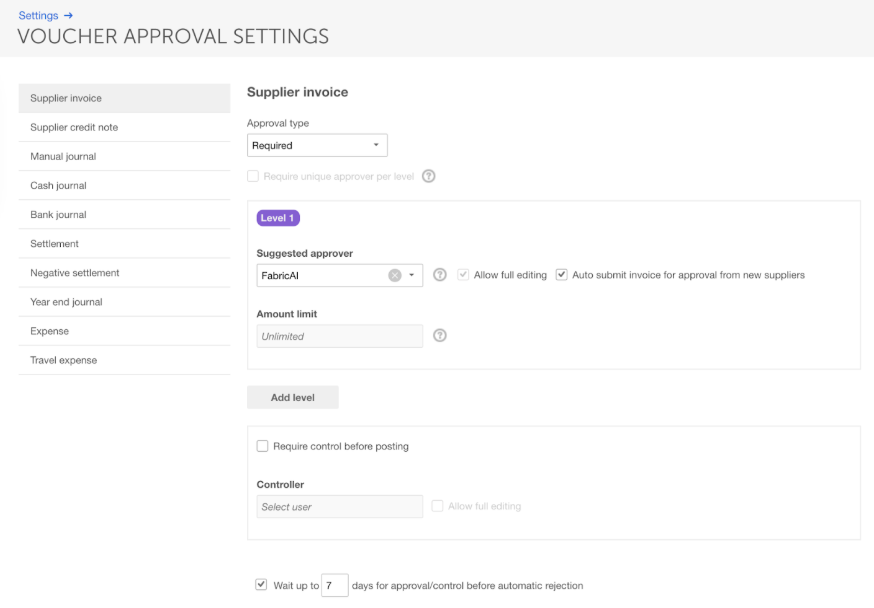
- Change the approver to FabricAI. NOTE! Make sure the “auto submit invoice for approval from new suppliers” setting is checked
- Add new level for client/client's personnel
- Repeat this for all other clients you connected FabricAI to
- Your initial situation is likely to be something like this
This article has been translated using an AI-based translation tool. The contents or wording of these instructions may differ from those in other instructions or in the software.
Did you find it helpful? Yes No
Send feedbackSorry we couldn't be helpful. Help us improve this article with your feedback.