Preparing for circulation automation in Procountor
If you want to send invoices for circulation in Procountor via FabricAI, i.e., utilize the "Alternative with circulation" process (read more about processes), the actions mentioned in this guide must be completed first. You can select the "Alternative with circulation" process when connecting a new Procountor client in the FabricAI portal, or if the client is already connected with another process, change the process according to this guide.
1. Creating verifier lists
In the FabricAI portal, it is not possible to select (nor automate) directing an invoice to an individual person/people or default circulation, but to an verifier list. Therefore, it would be important to create such lists and name them as clearly as possible. The name should ideally indicate any possible connection to a specific cost center, for example. NOTE! The accountant/accounts manager using FabricAI may not necessarily need to be included in these, as it would require actions from them in Procountor. Additionally, you can of course create a verifier list with only one person.
- Open "Approval circulation management"
- Open "Verifier lists" from the top left corner
- Create the necessary verifier lists for all possible circulation combinations
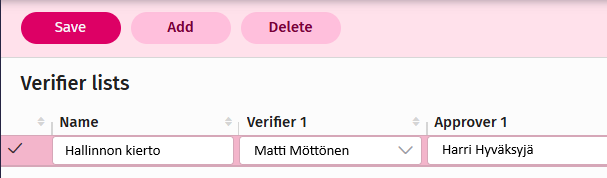
Note! For the FabricAI process to work correctly, it is important that there are no identically named verifier lists created in Procountor. This is because FabricAI recognizes circulations based on individuals.
2. Setting the default circulation (NOTE! It is advisable to do this at the earliest on the implementation day, as it may potentially disrupt the current circulation)
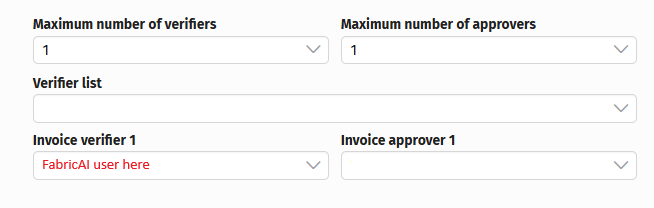
For the process to work optimally, the accountant/accounts manager using FabricAI must be the first in the circulation of all invoices. This is sensible because invoices are often wanted to be held first in the FabricAI portal (and Procountor) before they are sent forward. Additionally, a situation may arise where the invoice needs to be processed in Procountor instead of FabricAI. The settings may often already be in place for this if the same person has previously directed invoices to the correct verifier lists in Procountor. Note! You can also leave the default circulation empty if you feel it is better.
3. Removing previous automations (if necessary)
If you have previously directed invoices to the correct lists, for example, from the supplier in Procountor, it might be more sensible to remove such rules. This is because the intention in the FabricAI portal is to handle invoices more broadly than just circulation (accounting, etc.), so now if some invoices go directly to circulation, this may disrupt the optimal process.
4. Use the "Help AI" feature for automatic circulation determination
If you want the recognition of circulation lists to be automatic and FabricAI to provide these ready for purchase invoices, utilize the "Help AI" feature in the FabricAI portal. Read more about the feature here.
Note! If there is only one verifier list in Procountor, invoices automatically go to that circulation - no separate settings are needed for this.
5. Other considerations
If the accounting firm has previously clicked the "Verify" button in Procountor, by following the above instructions, this can no longer be technically done. However, invoice verifying remains normal for the accounting firm in the FabricAI portal. The only practical change from the perspective of the invoice verifier or approver is that the invoice does not receive the "verified" stamp, but invoices move in Procountor to the verifier list received from FabricAI either to the status "In progress" or "Awaiting verifying". If the invoice has both a verifier and an approver, the status becomes "In progress", and if only an approver, the status becomes "Awaiting inspection".
If the invoice verifier/approver has previously been accustomed to receiving invoices in the "Received" or "Awaiting approval" status, this changes as mentioned above. However, this has no practical significance, as the accounting firm still verifies invoices in the FabricAI portal.
Did you find it helpful? Yes No
Send feedback