To connect FabricAI to the Netvisor training environment, you need credentials for both the FabricAI portal and the Netvisor training environment. You can order FabricAI credentials from tuki@fabricai.fi.
1. Create an api key (In the Netvisor training environment)
- Log in at koulutus.netvisor.fi
- Ensure that you are logged into Netvisor with a company to which you want to add FabricAI. For accounting firms, we recommend that you are logged into the accounting firm's own environment at this stage.
- Ensure that you are logged in with a user* who has rights to review purchase invoices, approve them, and set the purchase invoice approval cycle settings
- Check and edit if necessary by selecting “Sales and purchase ledger rights” from the company menu
- AND in the “Accounting” section, the accountant special role
- Check and edit if necessary by selecting “Users and roles” -> desired user from the company menu
- AND edit rights to the basic functions of the purchase ledger in the “Accounting” section, as well as views and lists
- Check and edit if necessary by selecting “Users and roles” -> desired user -> “Accounting” from the company menu under “Function-specific settings”
- Then select “Software interface and identifiers” from the company menu
- Click “Create new api key”
- Done! The api key is now created. You will need the api key and user identifier later when adding a client in the FabricAI portal, so you can leave the current page open and open a new tab in your browser for the next step
* = When you create an api key, the rights are copied from the user who creates the key. If you use your own user for this, please note that you cannot edit all rights for yourself.
NOTE! You do not need to create an api key for each company separately, but ensure that the user who creates the api key has rights now and in the future to the companies processed in FabricAI.
2. Api resource rights (In the Netvisor training environment)
- Select “Api resource rights” from the company menu
- Select “Custom integrations” option, enter the access key below in the search field and press the “Search” button. The FabricAI access key is: FCAECD10A3F62CF559A9F9C588167040
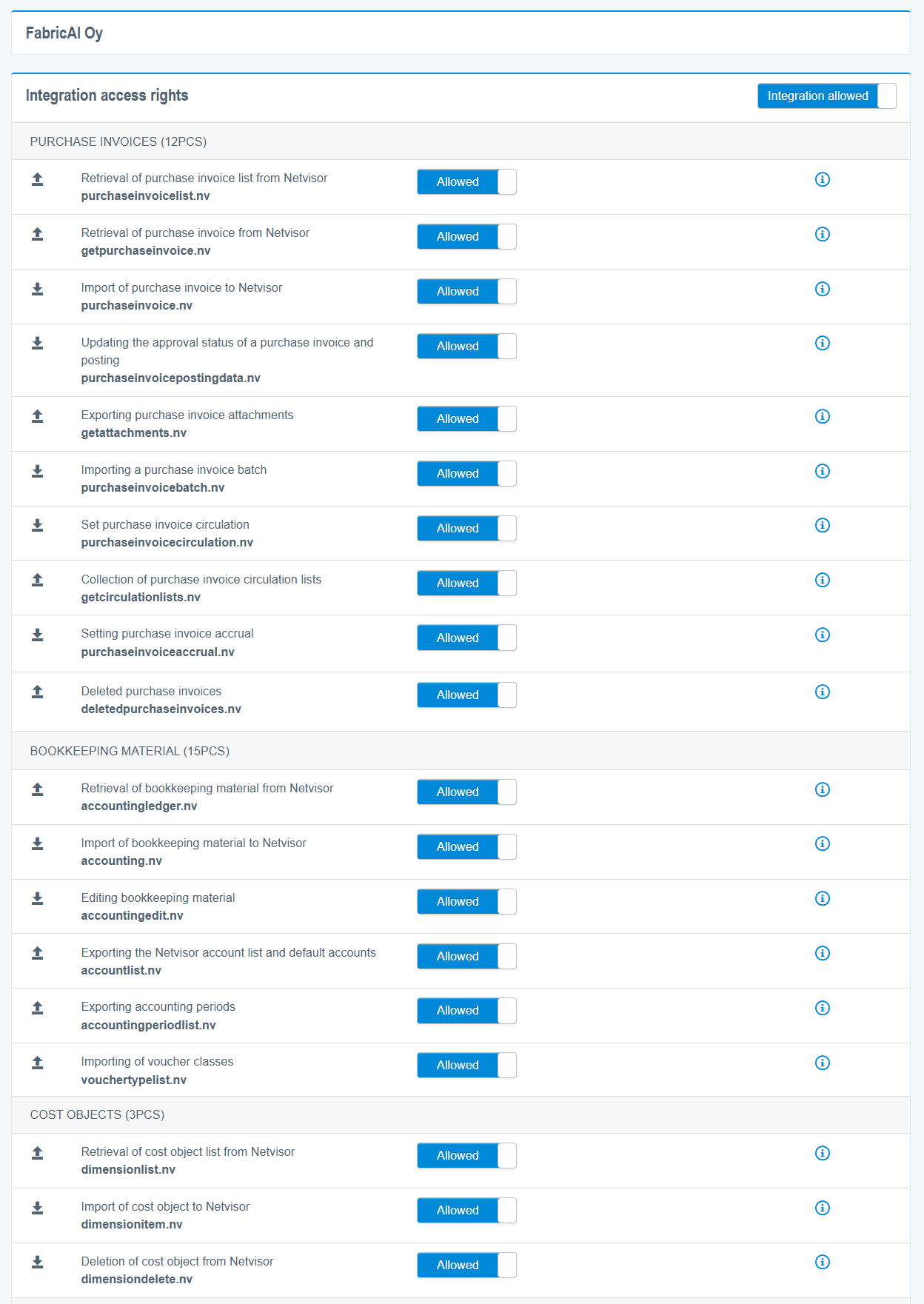
- Change all “resource status” sections under the subheadings “purchase invoices”, “accounting material” and “calculation targets” to “allowed” as shown in the image below
NOTE! This setting must be done separately for each client company where FabricAI is to be used.
3. Add client in the FabricAI portal
- Log in to the FabricAI portal at https://app.fabricai.io
- Open the “Organization” tab from the top left
- Click “New integration” on the right
- Select Netvisor training (bottom option)
- Add the requested information. NOTE! Always select “Alternative” as the client's process for training use
Done! The client has now been successfully added to FabricAI. The required AI is trained in the background, and once this is ready, the client will start directly in production without separate confirmation. Usually, this takes a maximum of one day. Additionally, remember to set the client as a favorite on the FabricAI portal homepage.
Did you find it helpful? Yes No
Send feedback