Progressive Automation is your tireless workmate that handles recurring invoices on your behalf. Learn more about Progressive Automation here.
Switch on or off
You can switch Progressive Automation on or off at any time by contacting our support at tuki@fabricai.fi or by selecting it from the client-specific settings:
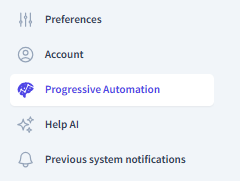
- Click the Settings tab at the top left of the FabricAI portal

- Select Progressive Automation from the left
- Switch Progressive Automation on or off by clicking “Activate” or “Deactivate”
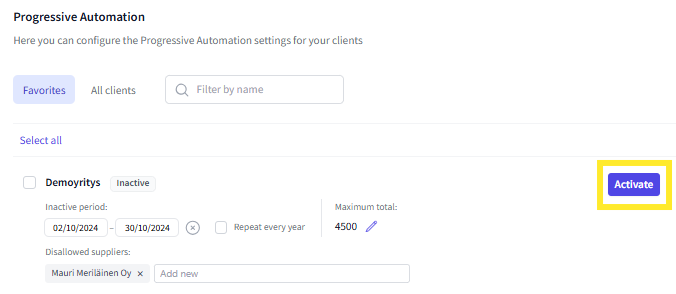
- You can also set a temporary deactivation with a date restriction. If you provide a date restriction, a box will appear allowing the deactivation to repeat every year at the same time.
Maximum total change
You can also change the maximum total for Progressive Automation. The maximum total refers to the maximum invoice total that Progressive Automation can handle independently.
Supplier block
If desired, you can set blocked suppliers. In this case, Progressive Automation will leave all invoices from the supplier for you to review for that client. NOTE! The supplier's name must match exactly the supplier on the invoice, so remember to include, for example, the company form.
Bulk edit
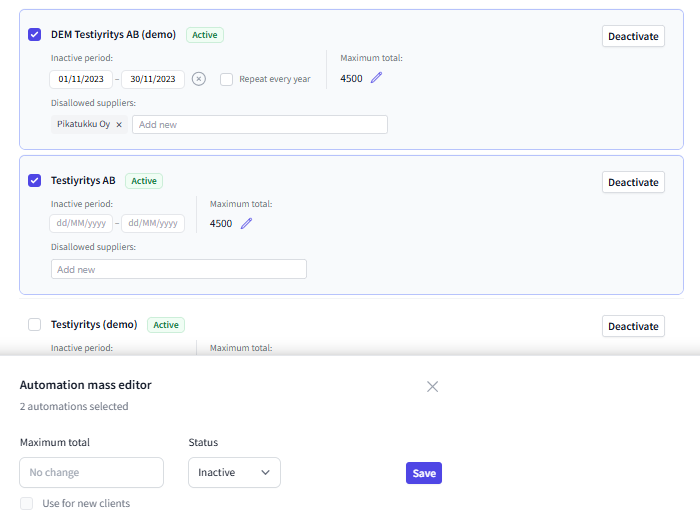
If you select multiple clients by checking next to the client's name or use the “Select all” option, you can make changes to certain settings in bulk. These settings include the maximum total and the activation or deactivation of Progressive Automation. You can also select a setting that applies the same setting to future clients.
When multiple clients are selected at the same time, a bulk edit window automatically appears at the bottom of the screen:
Did you find it helpful? Yes No
Send feedback