Connecting FabricAI to Procountor begins
a) From Procountor, if you have not yet connected any client to FabricAI
b) From the FabricAI portal, if you have already completed steps 1 and 2 (you can thus proceed directly to step 3)
1. Allow the use of interfaces (in Procountor)
Using FabricAI requires allowing the paid interface of Procountor in every client environment utilizing FabricAI. You can check the current interface pricing on Procountor's website. Without separate actions, the invoice for interface usage will go to the company utilizing Procountor, not the accounting firm. NOTE! However, from March 2022 onwards, you can also utilize the Accounting Firm API pricing model, where Finago invoices the interface fees more affordably from the accounting firm instead of the client owning the Procountor environment. In this case we recommend starting with initiating this pricing model – read the instructions here and then continue with the following actions.
- Open Procountor and select the management gear in the bottom left corner
- Select Company information and then Usage settings
- Go to Integration settings and check the box Allow the use of billable interfaces
- Remember to save the changes
2. Create an API user (in Procountor)
Connecting FabricAI requires creating a new API user in the client company's Procountor environment. If you are connecting clients of an accounting firm, we recommend creating one API user in the accounting firm environment. Create a new API user in Procountor as follows (see also Procountor's instructions on how to create your own API user):
- Select the management gear in the bottom left corner
- Select Users and access rights and Add new user
- Fill in the user's rights as follows:
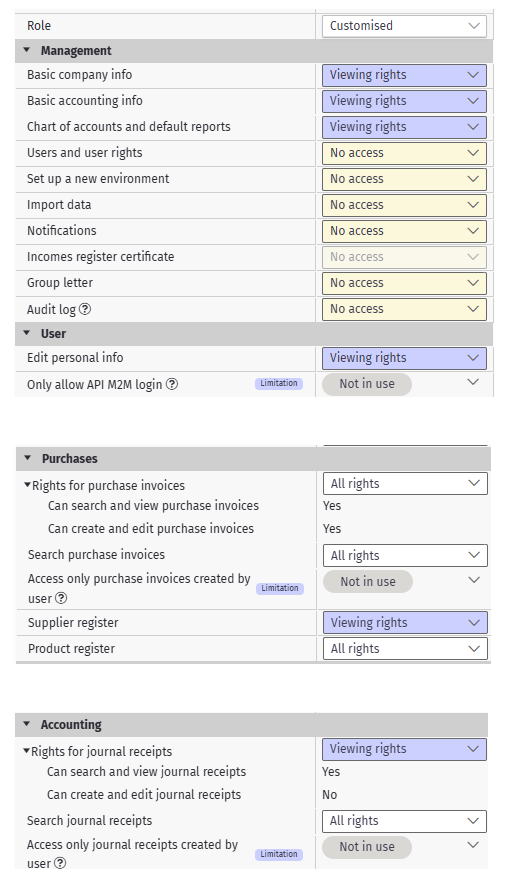
(above the same as a screenshot)
- Management>Basic company info: Viewing rights
- Management>Basic accounting info: Viewing rights
- Management>Chart of accounts and default reports: Viewing rights
- User>Edit personal info: Viewing rights
- Purchases>Rights for purchase invoices: All rights
- Purchases>Search purchase invoices: All rights
- Purchases>Supplier register: Viewing rights
- Purchases>Product register: All rights
- Accounting>Rights for journal receipts: Viewing rights
- Can search and view journal receipts: Yes
- Can create and edit journal receipts: No
- Accounting>Search journal receipts: All rights
We would appreciate it if you name the interface user so that the user name includes the name of your accounting firm. You can freely choose the other user information (NOTE! Remember to save the login information, especially e-mail address and user name!).
3. Log in from the link to Procountor (in the FabricAI portal)
Connect FabricAI to the client company's Procountor as follows:
- Log in to the FabricAI portal
- Open the "Organization" tab from the top left
- Click "New integration" from the top right and select Procountor
- Provide the required information to the client (you can read more about the processes here )
- Click "Confirm" and "Authenticate in Procountor"
- Log in to Procountor with the previously created interface user
- If you receive a confirmation with text starting with {"status":"OK", Procountor and FabricAI have been successfully connected!
- If you do not receive a response at all or the response is "error", please try again – if this does not help, you can contact tuki@fabricai.fi
NOTE! If you are adding multiple companies, you need to log in separately to each company's Procountor from the link above. As mentioned, you do not necessarily need to create a separate API user for each company, but you can create one user in the "accounting firm environment" and add rights to multiple companies at once.
There you go! The client has now been successfully added to FabricAI. The required artificial intelligences are trained in the background for the client, and when this is ready, the client will start directly in production without separate confirmation. Usually, this takes a maximum of one day. Additionally, remember to
- Set the client as a favorite on the FabricAI portal's homepage
- If the client is VAT-exempt or has partial VAT deduction, set the settings correctly according to this guide.
- Use the Help AI functionality to automate the correct circulation lists if you selected the process "Alternative with circulation".
Changing API credentials
If the API credentials change, you can simply reconnect the client from the FabricAI portal with the new credentials.
Notes and possible issues in Procountor
Junior (Procountor's own AI assistant) must be turned off when connecting FabricAI
Problem: After logging in with the API user, "Internal server error" appears
Explanation: The most likely option is that the use of interfaces has not been allowed in Procountor's settings. Allow the use of interfaces according to step 1.
Problem: The same company was added multiple times
Explanation: This is not a problem, as we automatically recognize if the same company has been added multiple times and only consider the first one
Problem: The company has been attempted to be connected from the FabricAI portal, and finally, a blank window opens with "this window can be closed", and the company does not appear on the client list
Explanation: Often, there is still some deficiency in the access rights settings mentioned in this guide. Check the access rights once more and try again.
Did you find it helpful? Yes No
Send feedback