If you are implementing FabricAI for multiple Netvisor companies, we recommend creating a generic API user.
Netvisor API credentials are tied to the user who created them, and this can cause disruptions if that user is removed from Netvisor for any reason (the API connection will break). A generic user, without any personal information, solves this problem.
If you see a need for this, we ask you to contact Netvisor customer service first, where they can assist with the process. When requesting help in creating a generic API user for FabricAI, they will know what it's about. You can find customer service hours and contact information here.
Connecting FabricAI to a Netvisor company starts from Netvisor:
1. Create API credentials (in Netvisor)
- Ensure that you are logged into Netvisor with the company you want to add FabricAI to. For accounting firms, we recommend that you are logged into the firm's own environment at this stage.
- Ensure that when creating the API credentials in Netvisor, you are logged in with a user* who has the following rights to the client companies to be connected:
- Sales and purchase ledger rights (Company menu>Users and access rights>Sales and purchase ledger rights) with at least the following: purchase invoice inspector, purchase invoice approval, and purchase invoice approval circulation setter. And the possibility of account allocation given.
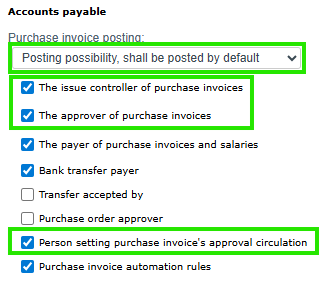
- Users and roles (company menu>Users and access rights>Users and roles) with accountant role

- Check to ensure that the following checkboxes are in the function-specific rights (should be automatically with the accountant role)
- Edit rights for basic functions of the purchase ledger
- Edit rights for purchase ledger views and lists
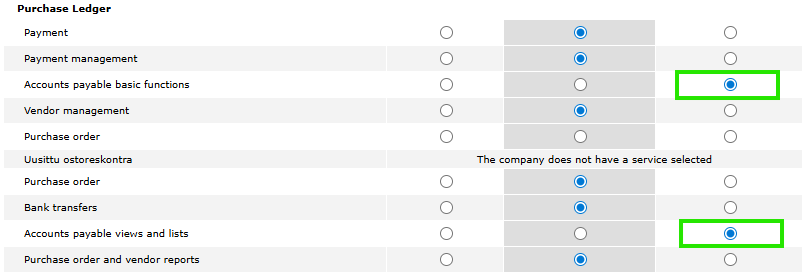
- Check to ensure that the following checkboxes are in the function-specific rights (should be automatically with the accountant role)
- Sales and purchase ledger rights (Company menu>Users and access rights>Sales and purchase ledger rights) with at least the following: purchase invoice inspector, purchase invoice approval, and purchase invoice approval circulation setter. And the possibility of account allocation given.
- Then select from the company menu Software interface > Software interface credentials
- Here, click “Create new API credentials”
- Done! The API credentials are now created. You will need the API key and user identifier later when adding a client in the FabricAI portal, so you can leave the current page open and open a new tab in your browser for the next step.
* = When you create the API credentials, the rights are copied from the user who creates the credentials. If you use your own user for this, please note that you cannot edit all rights for yourself.
NOTE! You do not need to create API credentials for each client company separately, but ensure that the user who creates the API credentials has rights now and in the future to the companies processed in FabricAI. If you have created a generic API user (or the user whose credentials were used to create the API credentials lacks rights to a company), they can be copied by Netvisor's User Administrator (KH) or Accounting Firm's Main User (TPK) to other companies according to Netvisor's instructions (instructions here).
2. API resource rights (in Netvisor)
- Select from the company menu Software interface >API resource rights
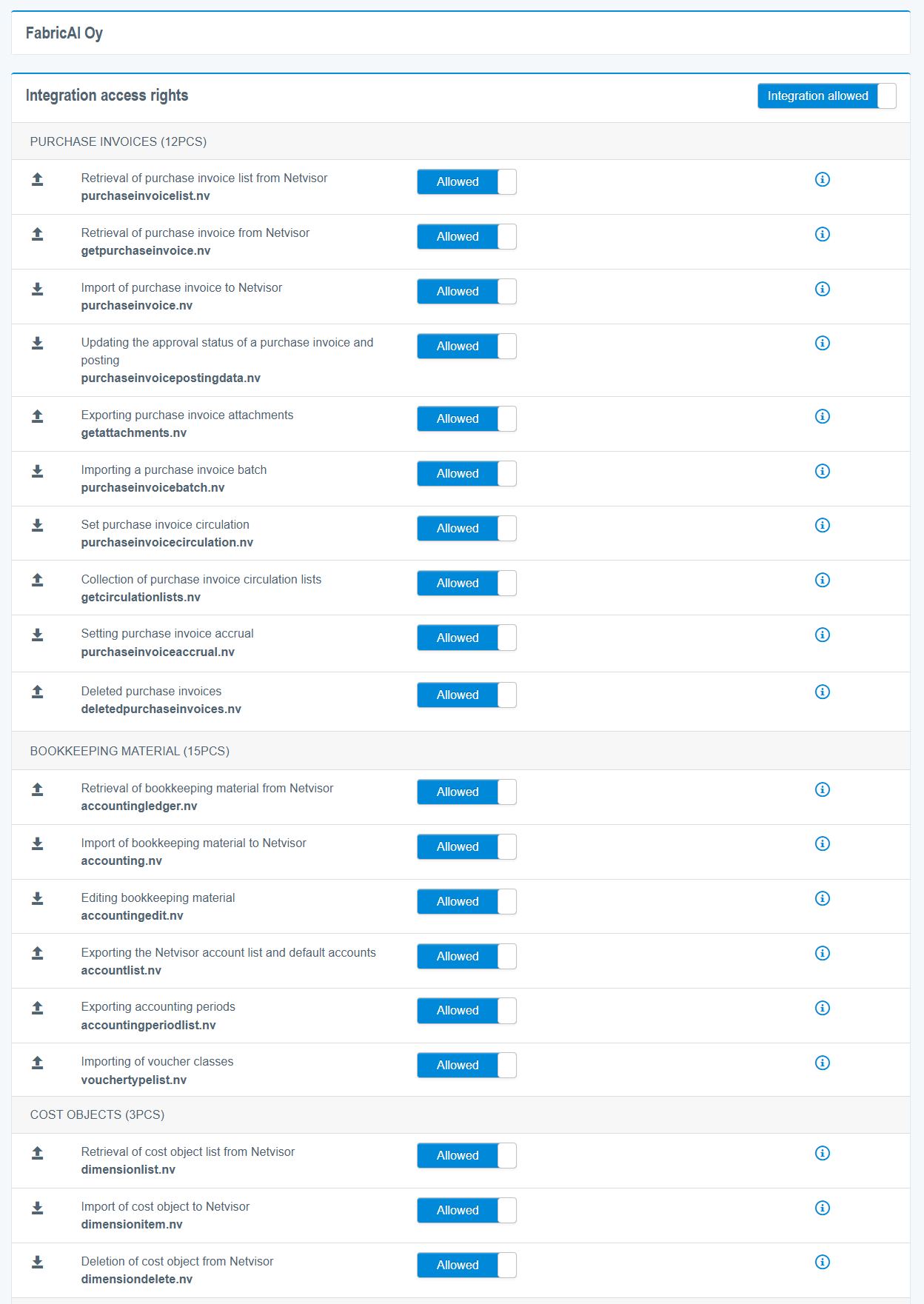
- Select Custom integrations, enter the access key in the search field below, and press the “Search” button. FabricAI's access key is: E2DCB2FF20700782F1EA878EDC19DC27
- Change all “resource status” sections under the subheadings “purchase invoices”, “accounting material”, and “calculation targets” to “allowed” as shown in the image below.
NOTE! This setting must be done separately for each client company where FabricAI is to be used.
3. Add client in FabricAI portal
- Log in to the FabricAI portal
- Open the “Organization” tab from the top left
- Click “New integration” on the right
- Select Netvisor
- Add the requested information. You can check here which FabricAI process is most suitable for the client
Done! The client has now been successfully added to FabricAI. The required AI models are trained in the background, and once this is complete, the client will start directly in production without separate confirmation. Usually, this takes a maximum of one day. If the client has dimensions in use, predictions can be ordered for them in the FabricAI portal once processing has started. Additionally, remember to
- Set the client as a favorite on the FabricAI portal homepage guide: Selecting favorite companies
- Make settings for automatically setting the correct circulation list if you selected the process “Alternative with circulation”. You can do this using the Help ai function in the FabricAI portal.
Changing API credentials
If API credentials need to be updated for already connected clients, please notify us at tuki@fabricai.fi.
Did you find it helpful? Yes No
Send feedback